


Black Friday is on November 27 this year. That leaves about two weeks, and if your WordPress dashboard is showing a little red bubble next to Plugins right now, you’re probably wondering whether to click Update or leave everything alone until December.
Both instincts are reasonable. Updates fix bugs and close security holes, and an old plugin is a risk of its own. But an update that changes how your cart or checkout behaves is the last thing you want to find out about on your busiest weekend of the year.
We make WooCommerce plugins, so we see this from both sides: we ship the updates, and we hear from store owners when one lands at a bad moment. This is the routine I’d suggest for any store. It works as a normal monthly habit, and it gives you a clear plan for the next few weeks: one careful round of updates now, then a short freeze until the sale is over.
Why updates break stores
In our experience most broken updates come from a combination nobody tested: a new WooCommerce version next to an extension that hasn’t caught up, a theme carrying an old copy of a WooCommerce template, or three plugins updated at once so you can’t tell which one changed the checkout.
WooCommerce itself ships a feature release roughly every five weeks, with smaller patch releases in between when a bug needs fixing. Add your payment gateway, your shipping plugin, your theme and a handful of extensions, and something on a busy store wants updating most weeks. That’s normal. The trick is to update in batches you’ve checked, instead of one click at a time whenever the bubble appears.
What WordPress already does for you (and what it doesn’t)
WordPress now protects you from the worst kind of failed update on its own:
- Since WordPress 5.5 you can turn auto-updates on or off for each plugin from the Automatic update column on the Plugins screen. By default WordPress checks for them twice a day and emails you about what updated or failed.
- WordPress 6.3 added a rollback for failed manual updates. If the new version can’t be downloaded or installed, the old one is put back.
- WordPress 6.6 brought the same idea to auto-updates. After a plugin auto-updates, WordPress requests your homepage to check for a PHP fatal error, restores the previous version if it finds one, and emails the site’s admin address.
That’s a real safety net, but look at what it checks: whether the site crashes. It doesn’t know that your Add to cart button stopped working, that shipping rates vanished for one country, or that order emails stopped going out. Your homepage can load perfectly while checkout is broken. Those are the failures that cost a store money, and you only catch them by testing like a customer.
A monthly update routine that fits in an hour
The WooCommerce update guide suggests a monthly cadence for most stores, with security fixes applied sooner. Here’s how I’d run that month to month.
1. Take a backup you know how to restore
Your host’s daily backup counts, as long as it includes the database and the files in wp-content. Make a fresh one right before you start, and make sure you know where the restore button is and how long a restore takes.
One catch on a live store: restoring a backup rolls the database back too, so any orders, customers or stock changes since the backup disappear from WordPress. So treat a restore as a last resort, and do your testing somewhere orders can’t get lost.
2. Test on a copy, not on the store
WooCommerce’s own guide is blunt about it: do not test updates directly on your production site. Many hosts can make a staging copy in a click or two. If yours can’t, you can restore a backup into a separate WordPress install.

On the staging copy, update everything that’s waiting, in the order WooCommerce recommends: WooCommerce first, then run the database update if it asks for one, then your extensions, theme and payment gateways. Doing them as one tested set matters, because that exact set is what you’ll repeat on the live store.
3. Read the changelogs before you click
It only takes a few minutes and tells you where to look when you test. Skim each plugin’s changelog for three things:
- anything touching cart, checkout, payments, shipping or taxes;
- a jump in the required WordPress, WooCommerce or PHP version;
- a “tested up to” version that’s behind the WooCommerce version you’re about to install.
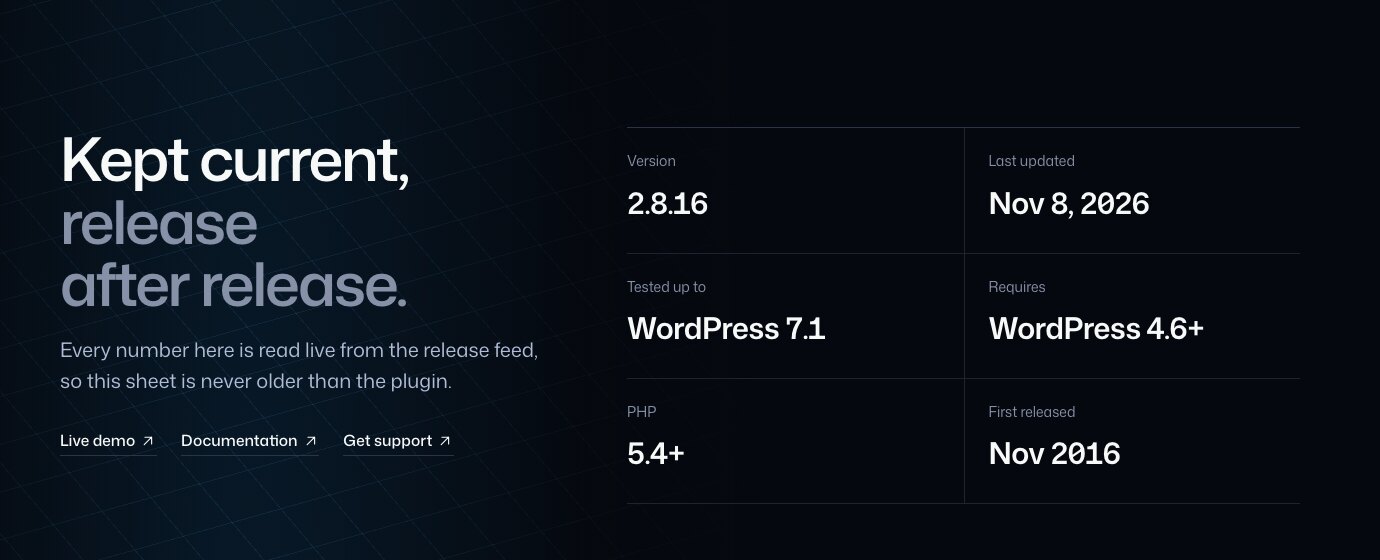
On our own plugin pages we keep all of this in one place, read live from each release, so you can check a plugin without digging. The Floating Cart page, for example, shows the current version, when it was last updated, the WordPress version it’s tested up to, what it requires and the full changelog, where every line is labelled as something new, an update or a fix. When I wrote this it said version 2.8.16, updated November 8, 2026, tested up to WordPress 7.1.
Whatever plugins you use, look for the same signals. A plugin whose last update was a couple of years ago and whose tested-up-to version is far behind yours deserves a closer look, update or not.
4. Check your template overrides
If your theme customises WooCommerce pages, it may carry its own copies of WooCommerce templates. When WooCommerce updates, its templates change but your theme’s copies don’t. Go to WooCommerce > Status and scroll to the Templates section. It lists every override and notes which ones are outdated. An outdated cart or checkout template is worth raising with your theme’s developer before you go any further.
5. Shop your own store
Now test on staging the way a customer would, on your phone as well as your computer:
- Open a product with variations and pick a size and color.
- Add it to the cart, change the quantity, and remove something.
- Apply a coupon, the way your Black Friday shoppers will.
- Go through checkout with a shipping address in each region you ship to and check the rates and taxes.
- Pay with a test or sandbox payment if your gateway supports it.
- Confirm the order email arrives and the order shows up in the admin.
WooCommerce also suggests checking for failed scheduled actions afterwards (WooCommerce > Status > Scheduled Actions), since a lot of background work, from emails to subscription renewals, runs through them.
If you ran our 30-minute mobile cart audit earlier this season, you already have the checklist. Run the same one after updates.
6. Repeat the same set on the live store
Once staging passes, update the live store with the same versions in the same order, at your quietest hour. Then run a shorter version of the shopping test on the real store. If something misbehaves, WooCommerce’s advice is to keep shoppers out of checkout while you sort it out, rather than taking orders through a broken flow.
Auto-updates: which plugins I’d leave on and which I’d switch off
Auto-updates are great for plugins that sit far from the money. A contact form, an image optimiser or a small admin tool can usually update itself, especially with the 6.6 rollback behind it.
For WooCommerce itself, your payment gateway, shipping and tax plugins, your theme, and anything that changes the product page, cart or checkout, I’d turn auto-updates off and handle them in your monthly round. Those are the plugins where “the site still loads” isn’t good enough.
The Black Friday freeze
With Black Friday on November 27 and Cyber Monday on November 30, I’d do it like this:
- This week or early next week, run the full routine above. It’s your last full update round of the season, and you still have time to fix anything it turns up.
- From about a week before Black Friday until the Tuesday after Cyber Monday, change nothing on the live store: no plugin updates, no new plugins, no theme tweaks.
- Switch off auto-updates for the store-critical plugins during that window if you haven’t already.
- Make one more backup right before the freeze starts.
WooCommerce works the same way. Last year the team pushed WooCommerce 10.4 back two weeks to keep it away from Black Friday and Cyber Monday, because that’s the most important stretch of the year for stores. If the people who make WooCommerce don’t want a big release landing that weekend, I’d take the hint.
The one exception: security fixes
A freeze shouldn’t mean ignoring a security release. If a plugin you use announces a fix for a vulnerability during your freeze, read what it fixes. If it’s serious and you’re affected, update that one plugin on staging, run the quick shopping test, then update it live. Updating one tested plugin is far less risky than clearing the whole update list.
After the sale
Once Cyber Monday is over and orders have calmed down, lift the freeze and run the routine again. By then a few updates will have piled up, so give it the full hour. It’s also a good moment to note anything that bothered you during the sale, a slow page or a confusing step in checkout, while it’s fresh.
If you’re still shopping for tools before then, our Black Friday WordPress deals roundup lists this year’s offers from WordPress makers, ours included. Just remember the rule above: install anything new before your freeze, not during it.
Good luck with the sale. And if one of our plugins misbehaves after an update, tell us through the support page and we’ll take a look.
Georges
Found this useful? Pass it on.