

WooCommerce Quick View: Which Products Benefit From It (And When It Gets in the Way)
A quick view button looks like an easy win. The shopper hovers over a product in the shop grid, a popup opens with the photo, price and an add to cart button, and nobody has to wait for a full page to load. Many stores add one without ever checking whether it helps.
It doesn’t help every store. On some catalogs it keeps people moving, and on others it puts one more layer between the shopper and the information they need. Below is a way to decide for your own products, plus a short checklist for setting it up so it doesn’t annoy anyone.
What research says about quick views
The most useful evidence comes from the Baymard Institute, which has tested quick views with real shoppers. Their findings split on how the shopper decides.
For visually driven products like apparel and decor, Baymard found quick views useful. A larger image in the overlay is often enough for a shopper to add a dress to the cart. For spec-driven products, they found the opposite. In their words, quick views “add an additional layer of friction to the product-browsing experience.” The overlay can’t hold every spec a shopper cares about, so most people still end up on the product page, and some simply learned to ignore the popup.
Baymard also describes quick views as often “a substitute for a poor-performing product list.” If your shop grid doesn’t show enough information, a popup can paper over that. Their quick view research says to consider quick views only for mixed catalogs, and only after the product list itself performs well.
If much of your traffic is on phones, one more finding applies. In Baymard’s mobile and desktop comparison, “some subjects mistook the ‘Quick View’ for the product page” during mobile testing. They didn’t see that in recent desktop testing.
The one-question test: how do your shoppers decide?
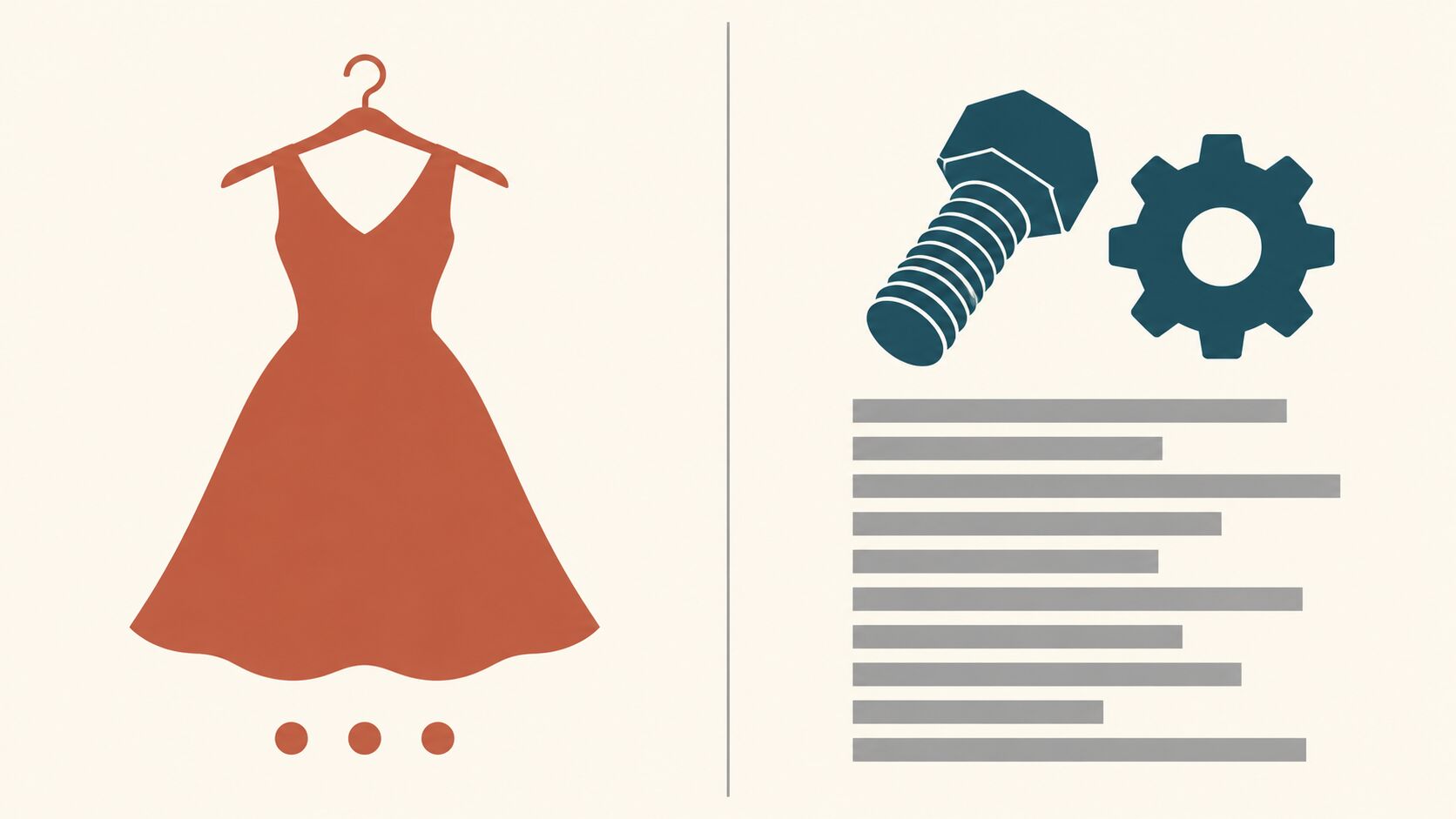
Before you think about plugins or settings, sort your products by how people choose between them. There are two groups, and many stores have both.
Products people judge by looking
Clothing, jewelry, home decor, prints, gifts. The shopper wants to see the item larger, maybe flip through two or three photos, check the price and pick a size. Everything they need fits in a popup. A quick view saves them a page load and keeps their place in the grid.
Products people judge by specifications
Tools, electronics, fittings, parts, anything where compatibility or measurements decide the sale. The shopper needs dimensions, materials, ratings or a compatibility list, and they’ll read it all before buying. A popup can’t carry that, so they open the product page anyway. The quick view just added a step.
Mixed catalogs
A boutique might carry apparel plus a few technical items like garment steamers. If your store mixes both kinds of product, decide per category instead of per store. Show the quick view button on the visual categories and leave it off the rest.
Run a ten-minute check on your own store
You don’t need analytics to get a first answer. Try this with five products from your busiest category.
- Open each product page and write down what a buyer needs before adding to cart. Count the items.
- Look at your current shop grid. How many of those items show up on the grid card already (image, price, short name, rating)?
- Ask whether the missing items fit in a popup that’s roughly one screen tall. Sizes, colors and a short description do. A long spec table doesn’t.
- Ask someone who didn’t build the store to buy one item from the grid. Watch whether they reach for the popup or go straight to the product page.
If the missing items are only variation choices and a short description, a quick view will probably help. If they include long specs, compatibility notes or downloadable documents, skip it for that category and improve the grid card instead.
When a quick view adds friction
A few patterns show up again and again in stores where quick view backfires.

- The product has required details the popup leaves out, such as a size chart, a fit note or a shipping restriction. Shoppers add to cart, then find the problem later.
- A key option appears only in the popup, so shoppers who skip it never see it.
- The grid card shows only an image and a name, so the popup does the job the card should be doing.
- On mobile, the popup fills the screen with no obvious way to reach the real product page. Baymard’s mobile fixes are to dim the list behind the popup, leave some of it visible and tappable, and make the product page link prominent without scrolling.
- The popup opens when shoppers only meant to scroll. A trigger that’s too easy to hit gets ignored at best, and Baymard noted that a few shoppers were disrupted when they clicked one by mistake.
If your variable products are the issue, a popup may not be the fix at all. Stores with many colors and sizes often do better by making variations easier to find in the grid, which we covered in how to make a WooCommerce store with lots of colors and sizes easier to browse.
What a good quick view shows
If your test says yes, keep the popup small. A shopper should be able to decide and act in a few seconds, which usually means:
- A large main photo, with a few more if the product has them.
- The product name and the price, including any sale price.
- A short description, not the whole listing.
- Variation choices if the product has them, so the shopper can pick a size and add to cart without leaving the grid.
- A quantity field and an add to cart button.
- A clear link to the full product page, for the shopper who wants more.
That last link is easy to forget. Baymard’s mobile finding, with shoppers mistaking the popup for the product page, is the reason to make it obvious.
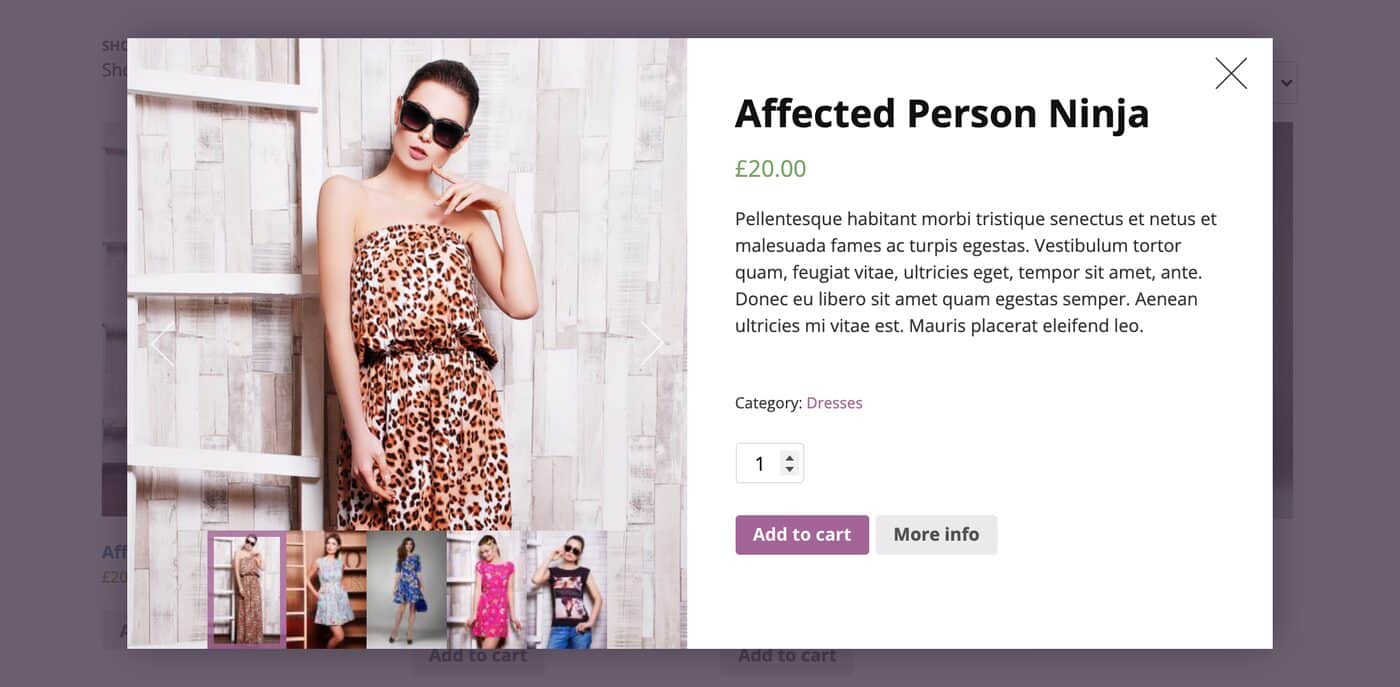
The screenshot above shows the Xploded Themes Quick View for WooCommerce plugin on its demo shop: image gallery, price, short description, quantity, add to cart, and a More info button for the full product page. According to the product page, it also supports variations, offers Ajax add to cart, lets you choose where the trigger sits (over the product image on hover, or before, above, after or below the add to cart button), and has previous and next arrows for moving between products. It’s compatible with Variation Swatches, which is handy if you want color or size buttons inside the popup.
You can try it before deciding anything, since the product page lists a live demo and a free trial option. If you want to add something specific to the popup, such as a shipping note, the documentation explains how to add custom content within the quick view.
Accessibility basics for any quick view popup
A quick view is a modal dialog, and modal dialogs have documented keyboard rules. Whatever plugin you use, test against them. The W3C’s modal dialog pattern sets out the expected behavior:
- When the dialog opens, focus moves to an element inside it.
- Tab and Shift + Tab keep focus inside the dialog. Tabbing past the last element wraps back to the first.
- Escape closes the dialog.
- When it closes, focus returns to the element that opened it.
- The container has a role of dialog, aria-modal set to true, and a label, such as a reference to a visible title.
You can check most of this with just a keyboard. Tab to a quick view trigger, press Enter, then Tab around the popup and press Escape. If focus disappears, leaks into the page behind, or doesn’t land back on the button you started from, raise it with whoever built the popup. If you’re using one of our plugins and hit an issue, contact support.
Setting it up so it earns its place
Once you’ve decided a category should have a quick view, a few choices help it work.
Pick one trigger and stick with it
A button over the product image on hover suits desktop, but phones have no hover, so check how the trigger behaves on a touch screen. A button near add to cart is visible everywhere. Whichever you pick, make it clearly different from clicking the product itself.
Keep the add to cart path short
A quick view exists to save a step. If the shopper has to scroll to reach the button, or gets sent to another page for variations, it has lost its advantage. Open it on a real phone and see where the button lands.
Check what happens after adding to cart
Check whether the shopper gets a clear confirmation and stays in the grid. A popup that closes with no feedback leaves people wondering if anything happened. Our mobile cart and checkout audit walks through what to look for after the add to cart tap.
Measure before you keep it
Compare add to cart rate and product page visits for the affected category before and after you switch it on. If you see no improvement after a few weeks, turn it off.
A short decision guide
- Mostly visual products with short descriptions and simple options: turn it on and keep the popup lean.
- Mostly spec-driven products: leave it off and put the key specs on the grid card instead.
- A mix of both: enable it only on the visual categories.
- Lots of traffic on phones: test the trigger and the way back to the product page on a real device before you commit.
- Unsure: run the ten-minute check above on five products.
If you’d like to see a quick view in a real shop grid before you decide, the Quick View plugin page links to a live demo.
