

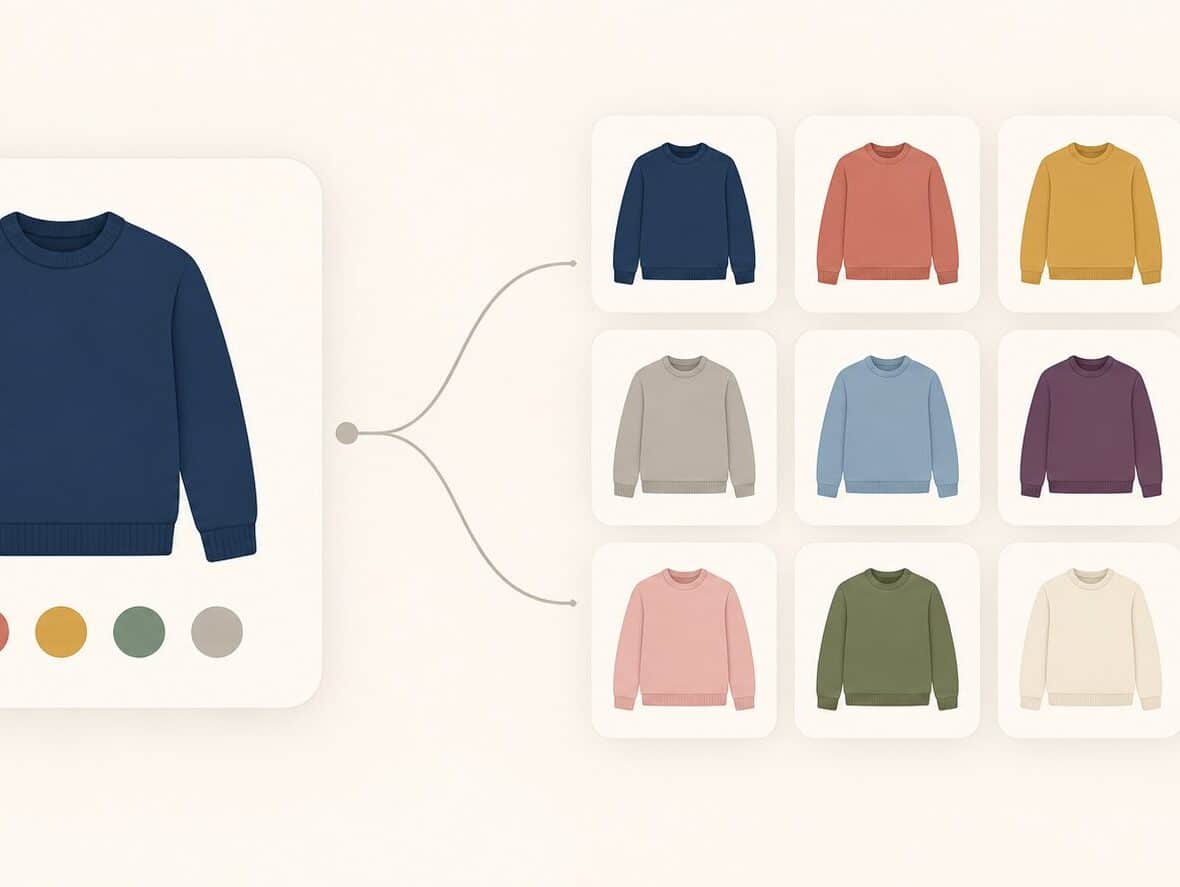
A shopper lands on your shop page wanting a medium hoodie in black. What they see is a grid of tiles, each with one photo and a price. To find out which hoodies come in black, they have to open them one at a time.
That’s a lot of clicking for something a good shop page should answer at a glance. If your catalog has many colors, sizes, or models, the six steps below will make it easier to browse. Most of them work with core WooCommerce, and one shows where a plugin can help.
Why large variable catalogs are hard to browse
In a default WooCommerce store, a variable product shows up as a single tile. Its colors and sizes live on the product page, so the listing can only show what’s true of the parent product: the main image, the name, and a price or price range.
Filters help, but they have a catch. An attribute filter returns products, not variations. Pick “Black” and you get every product that has a black variation, and in a standard setup each tile still shows the parent product’s main image. A shopper can filter by black and still see a red jacket tile.
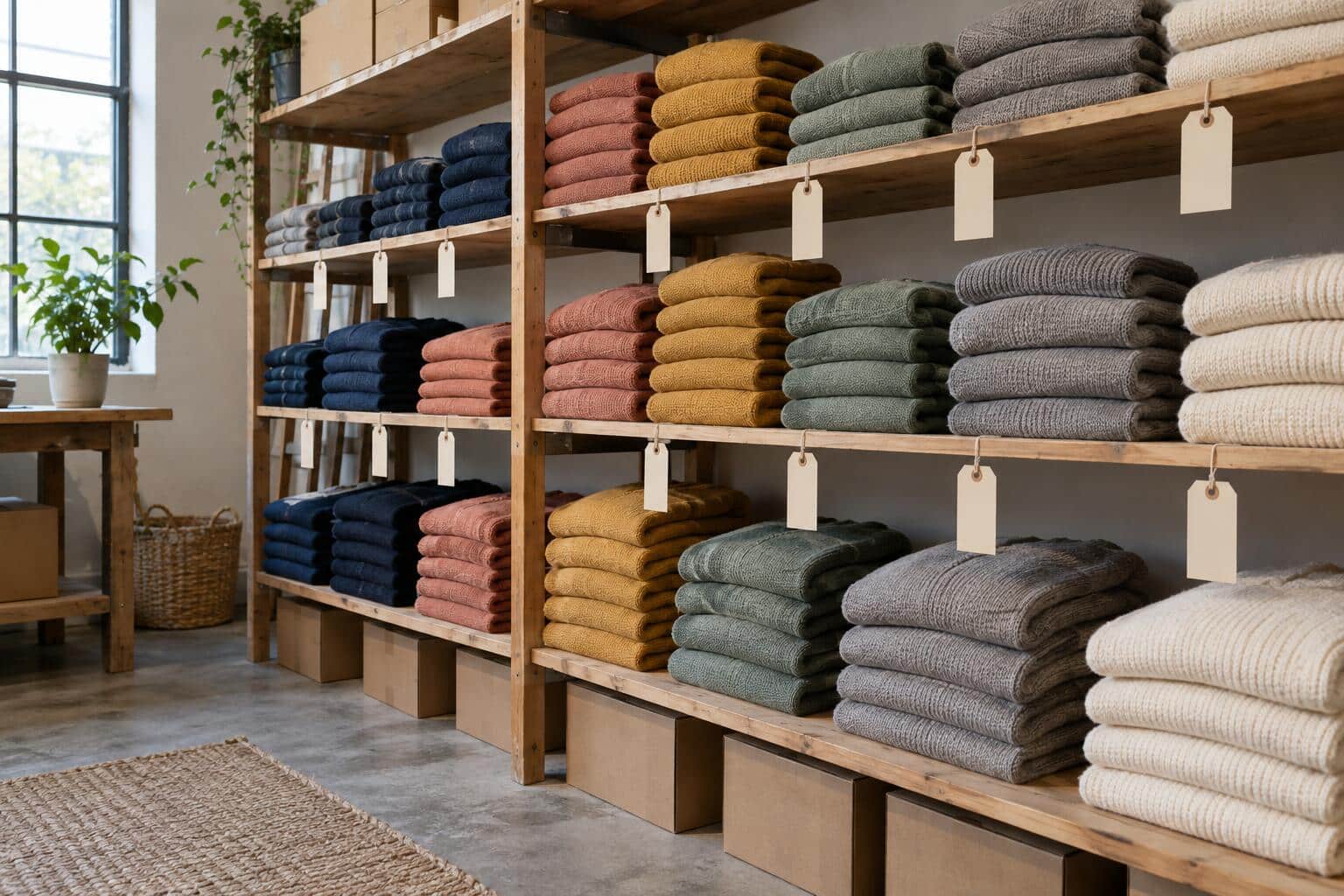
Picture a stockroom where everything is folded and shelved by color and size. The shelves make sense because someone sorted the stock first. Your catalog needs the same sorting before any filter or display plugin can use it.
Step 1: Clean up your attributes first
Everything later in this guide depends on tidy data, so start here.
- Use global attributes. WooCommerce’s documentation says, “Generally it’s preferable to define attributes globally.” Attributes you create on a single product page are, in the docs’ words, “not available for global use,” so a color typed in as custom text on one product won’t join the same color list as the rest of your catalog. You create global attributes under Products > Attributes.
- Pick one spelling for each term. “Navy,” “Navy Blue,” and “Dark blue” will show up as three separate filter options. Choose one and merge the others.
- Set a sensible sort order. Sizes should read XS, S, M, L, XL, not alphabetical. Use the attribute’s default sort order setting (custom ordering) to put them right.
- Consider enabling archives on your key attributes. The docs explain that with archives on, you can get “a page with all products having any term of this attribute,” such as a page for everything in black. That page can go straight into a menu.
- Define every attribute on every variation, and avoid “Any” options where you can. WooCommerce’s variable product documentation says, “we highly recommend you define all attributes of all variations.”
- Give each variation its own photo, so a black hoodie has a black hoodie photo.
Keep product names clean as well. “Classic Hoodie” is a good product name. “Classic Hoodie Black Medium” is a tile title that will look wrong the moment the color changes.
Step 2: Decide between one tile per product and one tile per variation
This is the biggest decision in the guide, and the research mostly points one way. Baymard Institute recommends combining variations into one list item, with swatches under the thumbnail. Their reasoning: “When product variations are combined, product lists contain only unique products, which helps users get an overview of products more easily.” They found that 12% of benchmarked sites didn’t do this when they published the piece in 2021. A later Baymard article, from 2023, found that 57% of sites don’t make all color swatches available in the product list. For mobile, Baymard suggests a horizontally scrollable swatch area, since such areas can hold a very large number of swatches.
That advice fits a product like a hoodie, where the shopper picks the product first and the color second. It fits less well when color or model is the thing people search for. Baymard’s article doesn’t discuss exceptions, so the table below is our own reading, not theirs.
| Your situation | Better starting point |
|---|---|
| Shoppers choose the product first, and color is a detail | One tile per product, with swatches or a variation count |
| Shoppers search by color or pattern, such as “sage green linen duvet cover” | One tile per variation |
| Each variation has its own photo, price, or stock level and sells on its own | One tile per variation |
| Each product has dozens of size combinations | One tile per product, with sizes chosen on the product page |
If you can’t tell which row describes you, look at your own data. Open your store’s search report, or your analytics, and check what people type into the search box. If colors and sizes dominate, variation tiles will probably earn their space.
Step 3: Make filters return what shoppers asked for
Whichever model you choose, filters need attention. WooCommerce’s Product Filters block lets shoppers “narrow the products shown in a Product Collection by price, rating, attribute, availability, category, brand, or tag,” and by default it updates the product list without reloading the page. It works alongside a Product Collection block on the same page. If your theme is a classic one, WooCommerce’s older widgets and shortcodes cover the same ground.
A few practical settings:
- Put the filters people use most at the top. For apparel that’s usually color and size.
- Keep the list short. Skip attributes that apply to only a handful of products.
- Add the Active Filters block. WooCommerce describes it as one that “displays the filters currently applied and lets shoppers remove them,” which matters once someone has stacked color, size, and price.
Then run the test that exposes most problems. Apply two filters, such as Black and size M, and look at what comes back. If the tiles show the wrong color, or you can’t tell which size you’re looking at, Step 2 is where to look.
Step 4: Show variations as tiles when that’s how people shop
With one tile per product, swatches or a “more colors” hint do a decent job. With one tile per variation, something has to change what the shop page lists. Core WooCommerce doesn’t do this. Without a plugin, the usual workaround is to build each color as its own product, which means duplicated descriptions and stock tracked in several places.
That’s the job Variations As Singles was built for. According to its product page, it displays variations as individual products on shop, category, filtered, and search results pages, and shoppers can add a specific variation to the cart straight from the listing. Its settings include:
- applying options globally or per variation;
- hiding the main product from listing pages;
- setting individual variations as featured, list-only, or without an add to cart button;
- customizing the auto-generated variation titles;
- custom button text for out-of-stock variations.
The live demo store shows the result. Each tile is one variation of a hoodie, named with its size and color, with its own photo and an add to cart button. The sidebar filters by color and size, and each option shows how many results it has.
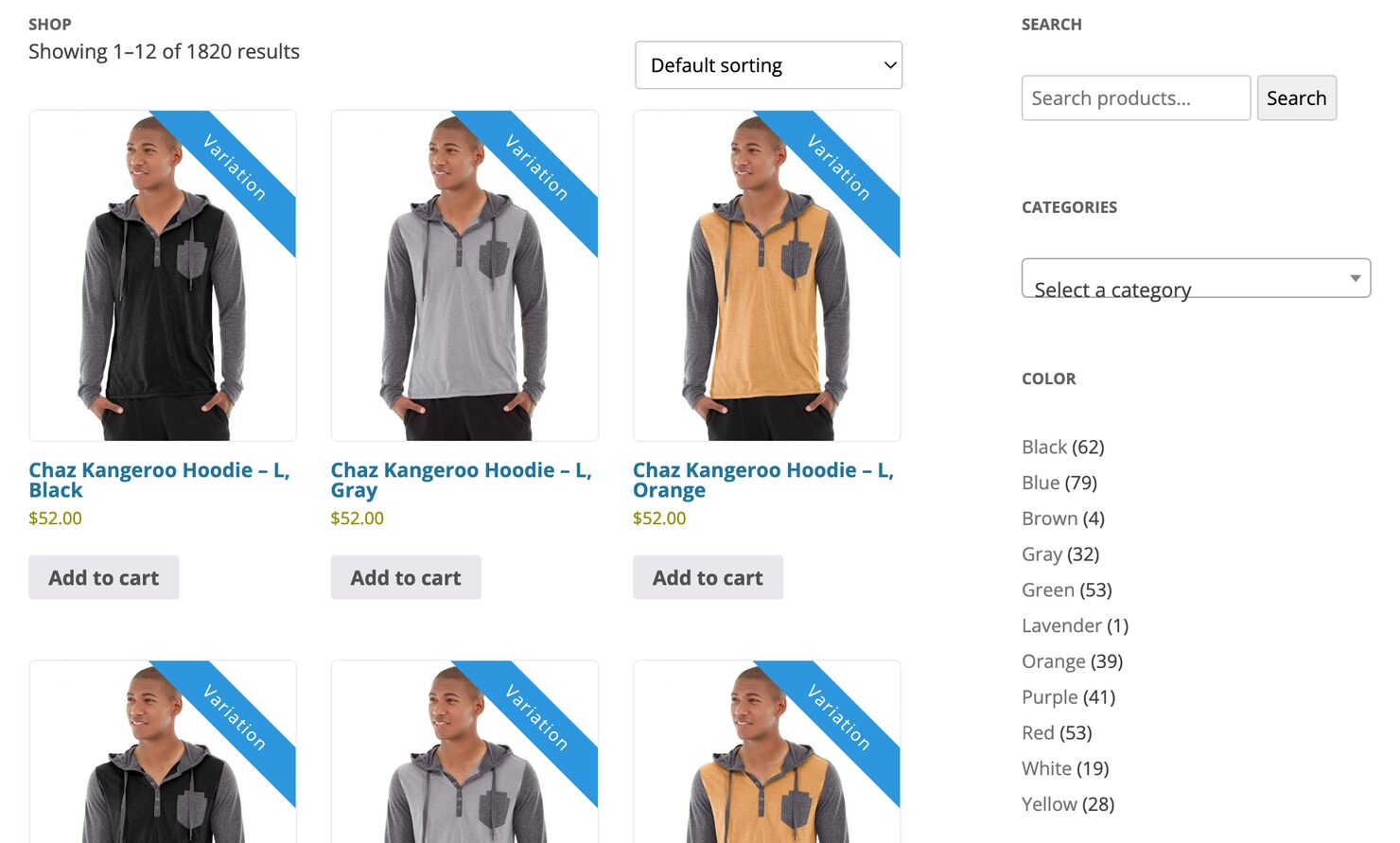
The demo reports 1,820 results, and that number is the cost of this approach. When every combination becomes a tile, a hoodie with five colors and six sizes becomes thirty of them. Filters stop being a nice extra and become the way people get around the shop. Titles matter too, because a tile needs to say which size and color it is.
Before you switch anything on, check the compatibility notes on the product page, which currently list testing with WordPress 7.0.1 and WooCommerce 10.9.4. Then try it on a staging copy with a few products first, and run the same two-filter test from Step 3.
Step 5: Check what happens after the click
A better shop page gets shoppers to product pages faster, so the product page has to hold up.
Start with how options are chosen. With a dropdown, shoppers have to pick a color name to find out what it looks like. A swatch plugin turns the dropdown into color, image, or label swatches. Variation Swatches for WooCommerce does that, and our earlier guides cover how to set up swatches in two steps and why they help usability.
Next, look at default selections. WooCommerce lets you preset a variation, and the docs note that “with default values set, shoppers can add the variable product to the cart without having to make a selection first.” That’s convenient, but it also lets someone add the wrong size without noticing. Only preselect an option when nearly everyone wants it.
Finally, check any product with a lot of variations. The documentation says, “If a Variable product has 30 or fewer variations, the drop-down menus for selecting variations on the front end will be dynamic.” Above that, the menus stop adjusting to hide unavailable combinations, so a shopper can choose one that doesn’t exist. If you have products over that number, test them directly. The Variation Swatches product page lists AJAX variation support with an adjustable threshold, so it’s worth reading if this applies to you.
Step 6: Test on a phone with real tasks
Most of these problems show up fastest on a small screen. Open your store on your own phone and try these:
- Find a specific color and size of one popular product.
- Find everything you sell in one color.
- Filter by size, then change your mind and remove the filter.
- Find a product that’s out of stock in one size and see what the page tells you.
- Get from the shop page to the cart with a specific variation.
Count the taps and note every spot where you had to guess. Do it again after each change. Ask a colleague or a friend who doesn’t know your catalog to run the same tasks, because you know too much about your own store.
A quick checklist
- Colors, sizes, and models are global attributes with one spelling per term.
- Sizes are in a sensible order.
- Every variation has its own photo and all of its attributes defined.
- You’ve decided, product by product, between one tile and one tile per variation.
- Filters sit where shoppers expect them, with Active Filters so they can be undone.
- Product pages use clear option controls and sensible defaults.
- Every task above works on a phone.
You don’t need to do all of it in a week. Start with the attribute cleanup, since it costs nothing and helps everything else. If your search data says shoppers look for colors and sizes by name, try variation tiles on a handful of products. The Variations As Singles demo is a quick way to see what that feels like with more than 1,800 variation results to filter through.
Found this useful? Pass it on.